

Creating a seamless payment process for your online courses involves more than just collecting payments—it’s about ensuring clarity and trust between you and your clients. HighLevel’s Payment Links feature allows you to add custom terms and conditions directly to your payment links, ensuring that your clients are fully informed of the transaction details before they make a purchase.
What are Payment Links with Custom Terms & Conditions?
Payment Links from HighLevel enable you to generate customized links for receiving payments from your clients. With the ability to add specific terms and conditions tailored to each transaction, you can enhance transparency and build trust with your audience.
Why Does Custom Terms & Conditions Matter To Your Business?
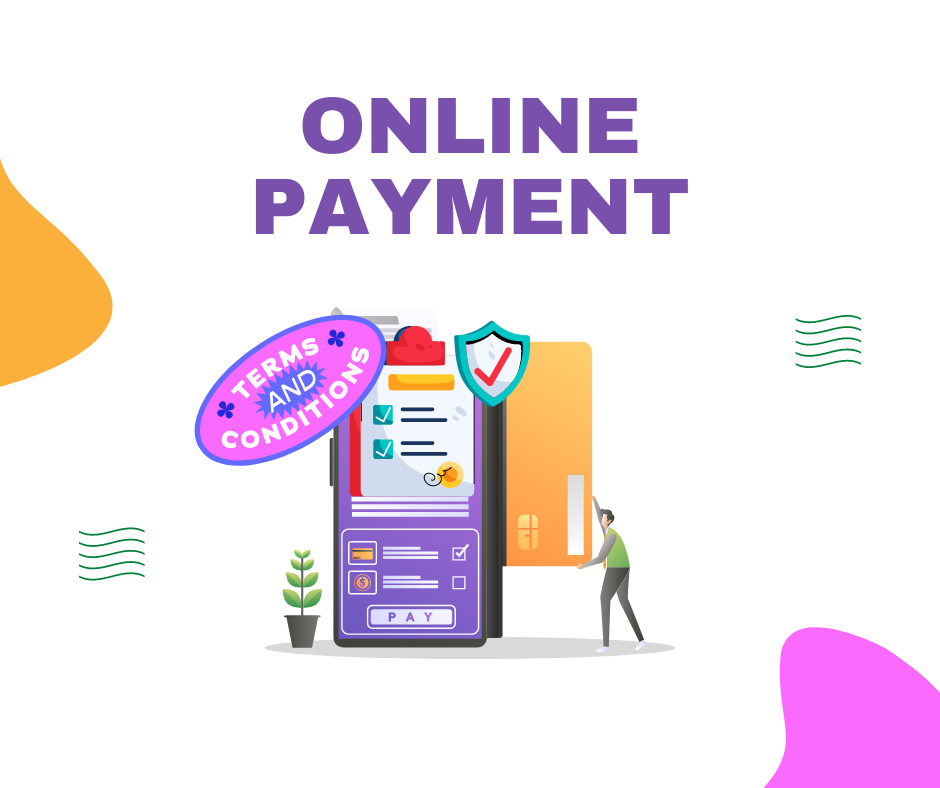
Here’s why incorporating custom terms and conditions into your payment links is beneficial:
- Enhanced Trust: Clearly outlining terms and conditions builds trust with your clients by ensuring transparency in your business transactions.
- Increased Flexibility: Customize terms and conditions for each payment link, allowing you to adapt to different client needs or specific transaction requirements.
- Better Compliance: Ensure legal compliance by ensuring all parties involved are aware of and agree to the terms of the transaction, reducing disputes and misunderstandings.
How To Use Payment Links | Add Custom Terms & Conditions From HighLevel
Implementing custom terms and conditions on your payment links through HighLevel is straightforward:
- Access Your Payment Settings:
- Navigate to the “Payments” tab from the left navigation menu in your HighLevel dashboard.
- Create or Edit Payment Links:
- Click on Payment Links from the upper navigation menu to create a new payment link or edit an existing one.
- Configure Terms & Conditions:
- In the configuration panel on the left side of the payment link settings, check the checkbox to enable custom terms and conditions.
- Add Terms & Conditions:
- Below the Pay Button settings, add your custom terms and conditions. You can format them as needed for clarity.
- Save and Share:
- Click on the Hyperlink icon to choose the text to display with the terms and conditions link. Add the URL where clients can view the full terms and conditions and click Save.
End users will now be able to review and agree to the terms before proceeding with the payment, ensuring a transparent and compliant transaction process.
Benefits of Using Payment Links with Custom Terms & Conditions

By incorporating custom terms and conditions into your payment links, you can:
- Build Trust: Establish a transparent relationship with your clients, fostering trust and credibility in your business practices.
- Reduce Disputes: Clearly communicate expectations and terms upfront, minimizing misunderstandings and potential disputes.
- Enhance Professionalism: Present your business as professional and organized by providing clear documentation of transaction terms.
Conclusion
Integrating custom terms and conditions into your HighLevel payment links empowers you to streamline your payment processes while ensuring client satisfaction and compliance.